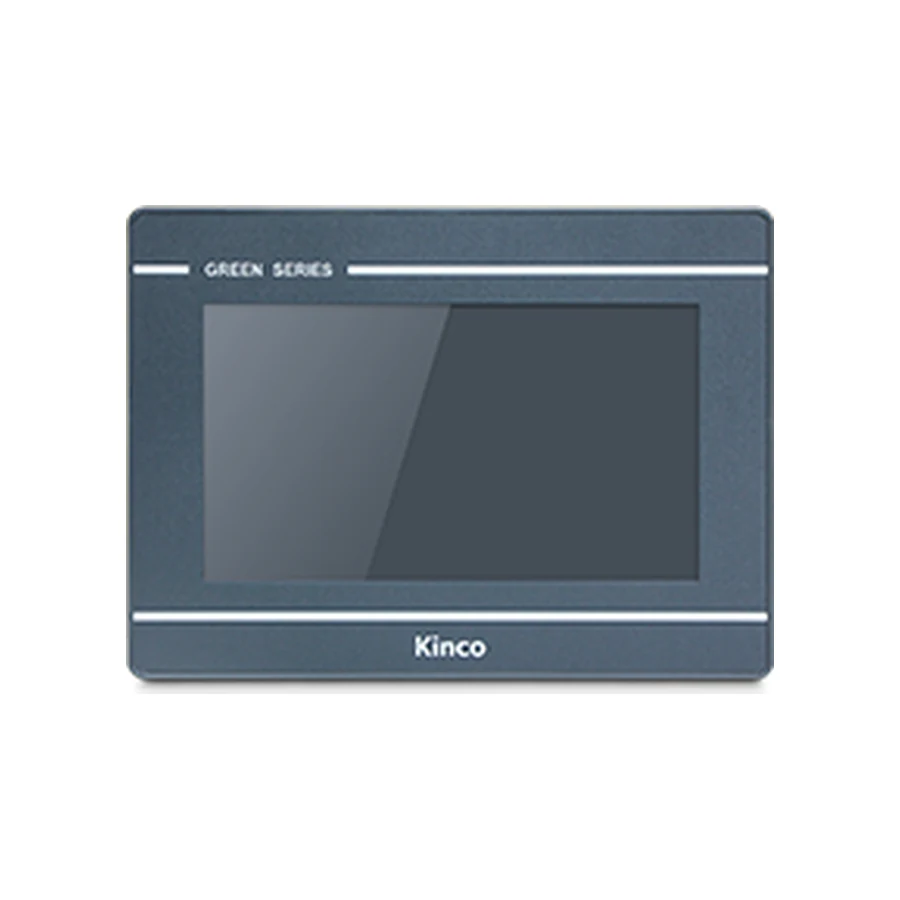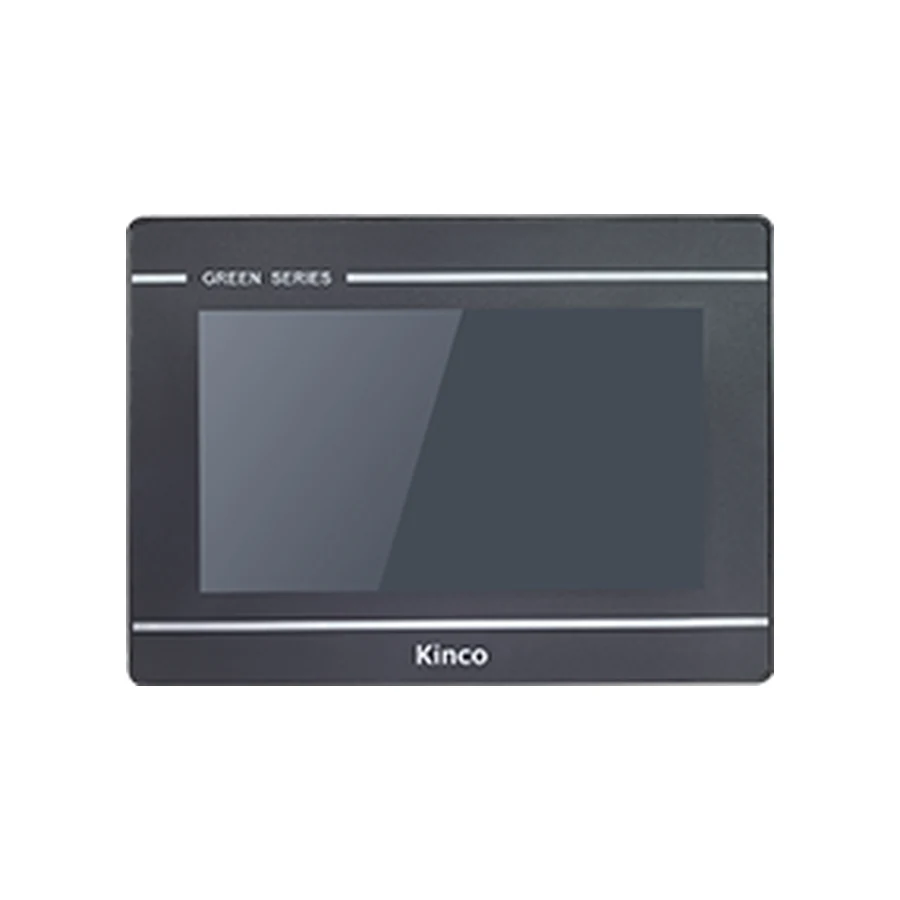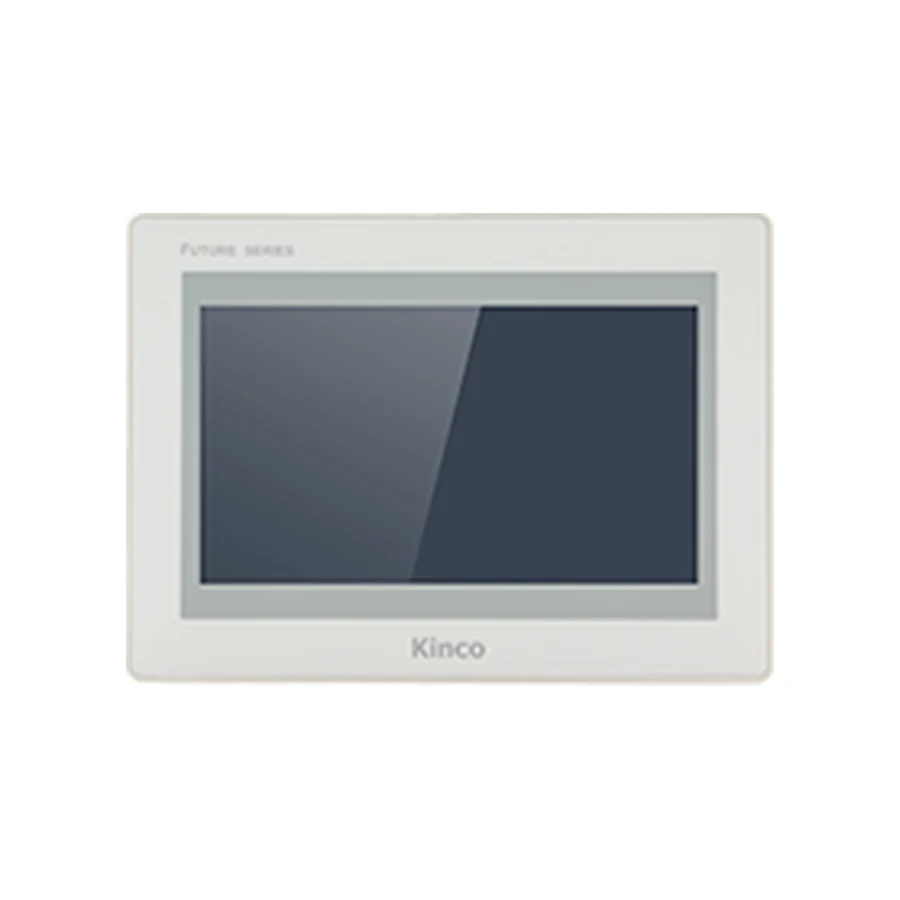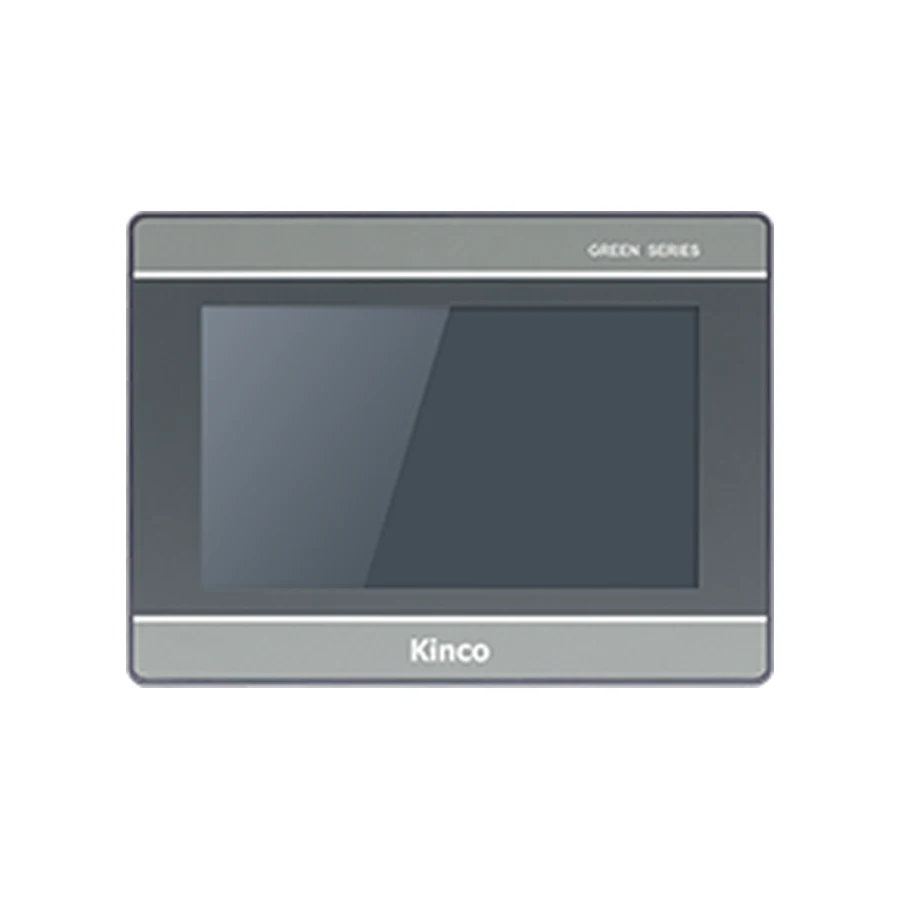
Choose DTools or DTools Pro from the complete Kinco HMI target rather than the age or name of the software. Begin with the panel label, original project and recorded release. Use the manufacturer’s download resources to check the package’s model coverage and transfer instructions. For a specific model’s manual or software request, open its product page and verify the applicable code before downloading or converting files.
Identify the Panel Target and Original Release
Photograph the panel label and compare it with the target recorded in the engineering project. Preserve hardware revision information where available. An archive named after a machine may contain several generations of work, so establish which file corresponds to the installed application. Keep the originating software release with that file before choosing a new editing environment.
A seven-inch display, Ethernet connector or Basic category does not identify the required programming software. GL070E is listed with DTools, while GL2070HE is listed with DTools Pro. Those examples explain why a similar-looking code is insufficient. The package choice follows the supported target, and a project conversion requires its own documented route and verification.
For a working machine, preserve its current source and connection settings before installing or testing another package. If the original release is unknown, ask the builder for the engineering handover and installer identity. Guessing the newest release first can obscure whether a later problem concerns the file format, target coverage or a missing dependency.
Which Kinco HMI Models Use DTools Pro?
The representative records below identify listed software families. They are not a minimum-version table or proof of automatic conversion. Confirm that the actual release includes the exact destination target, then retain the relevant model document and release information with the project.
| Representative code | Listed software family | Target and document review |
|---|---|---|
| GL070E | DTools | Verify exact target and originating release |
| GL2070HE | DTools Pro | Compare model record with package coverage |
| G2070HE | DTools Pro | Review target support and applicable instructions |
| F2070E | DTools Pro | Check package release and destination identity |
Use the GL070 and GL070E model record, GL2070HE resources, G2070HE documentation entry and F2070E software information for the code-specific questions. Browse the DTools Pro HMI directory when comparing listed targets; use this guide to decide what evidence each candidate still needs.
A Supported Target Versus a File That Opens
Opening a project proves only that the package can read that file sufficiently to display it. Confirm that the exact panel target is available and that required objects, drivers and resources remain valid. Compilation and hardware transfer are later checks. DTools and DTools Pro are separate target environments, not simply free and premium editions chosen by preference.
Find Official Downloads and Check Package Coverage
Start with the Kinco Download Center and the manufacturer information for GL and GL2. Identify whether a resource is an installer, software manual, model manual, drawing or driver document. A model catalogue does not substitute for release notes, and a software manual does not establish every panel’s wiring.
Record the package name, release identifier, source and the date you obtained it. Compare its supported targets with the selected panel. Keep its transfer instructions and driver help together so another technician can reproduce the environment. This article does not supply a substitute installer or promise a direct PDF download from the product pages.
Software Family Versus Verified Release Number
A family assignment can remain useful while individual releases change. Do not turn a model’s DTools Pro listing into an unverified minimum release or assume that the newest package is correct for every archived application. Check the actual package documentation for the target, project format and required dependencies. Record a verified release only after inspecting the relevant manufacturer material.
Legacy HMIware and Computer OS Requirements
For a Kinco HMIware download request, begin with the old panel’s full code and original project environment. Locate the applicable HMIware package through manufacturer resources or request matching archived documentation. Identify its software family, release and supported models explicitly. DTools and DTools Pro must not be presented as universal replacements for all HMIware projects.
For Windows 11, review the applicable release notes or software manual for operating-system coverage, architecture and computer-side driver requirements. An installer starting on a computer does not establish supported operation or a working transfer driver. If the matching material does not establish Windows 11 support, retain that as an unresolved requirement and obtain release-specific evidence before relying on that computer for maintenance.
Record the official source, document version, stated operating systems, bitness and relevant driver conditions. Distinguish documented requirements from a local observation on one workstation. No Windows 11 support claim, installation menu sequence or legacy conversion promise follows from the representative model table above.
Choose a Supported Project Transfer Route
Select the route supported by both the target and the software release. USB Host and USB Slave describe different functions; the presence of either connector does not establish a computer transfer procedure. For Ethernet, confirm the destination panel identity and documented network method. Removable-media transfer also requires an applicable target procedure and correctly exported application.
Prepare the cable, computer driver or network arrangement required by the matching instructions. Confirm that the intended panel is the device being addressed before replacing its application. Keep computer-to-HMI transfer settings separate from HMI-to-PLC communication parameters. Completing a project download does not validate the PLC service, driver addressing or application values.
If detection fails, use the USB download troubleshooting guide with the exact panel, computer and software details. Repeating a download without identifying whether the package detects the correct target provides little useful evidence.
Preserve Source Before Conversion or Download
Keep an untouched source copy with images, fonts and other referenced resources. Store converted work in a separate location and retain the original target and release record. Review changes to layouts, scripts, alarms, recipes and communication channels against the machine requirements. A successful compile is an intermediate result that still needs hardware and functional checks.
Upload, Download and Editable Source
Download usually transfers an application from the computer to the HMI; upload retrieves supported content in the opposite direction. Neither direction alone identifies file editability. A retrieved runtime is not automatically source, and source recovery can depend on stored content, software settings and access credentials. Ask the project owner for original files before planning a replacement.
Use the project migration review when the destination target or software family changes. It helps separate conversion work from hardware fit and machine acceptance. Follow the owner’s approved access process rather than assuming project protection can be removed during recovery.
Separate Detection, Transfer and Runtime Failures
Identify the stage reached before changing settings. If the project will not open, record its file type, originating release and error. If compilation fails, investigate the named object, unsupported target or missing resource. These problems occur before any cable or network transfer can validate the application.
If the computer cannot detect the HMI, inspect target support and the documented computer connection. If a transfer starts and fails, retain the exact error, timing and destination identity. If transfer completes but PLC values fail, examine the application connection separately. A USB driver change does not establish that an Ethernet PLC service or memory map is correct.
Save one justified change and its result at a time. Keep the last working project available so a later failure can be compared with an understood baseline. This stage record also makes a documentation request more precise than reporting only a download problem.
Open the Model Page for Specific Resources
For manual or software assistance, provide the complete code, original and proposed releases, source or runtime file type, computer OS, transfer route and exact error. Identify the missing document rather than requesting an unspecified upgrade. Include the project owner’s requirements when preserving an existing machine application.
Software Selection Questions
How do I choose between DTools and DTools Pro?
Use the full panel code and supported-target information for the actual release. The software names do not describe interchangeable upgrade levels.
Does opening a project prove that the panel target is supported?
No. Verify destination coverage, compile requirements and the documented transfer route, then test the application on the intended hardware.
Where should I check model-specific software and manuals?
Start with the exact model record and manufacturer resources. Keep the applicable document identity and software release with the project archive.