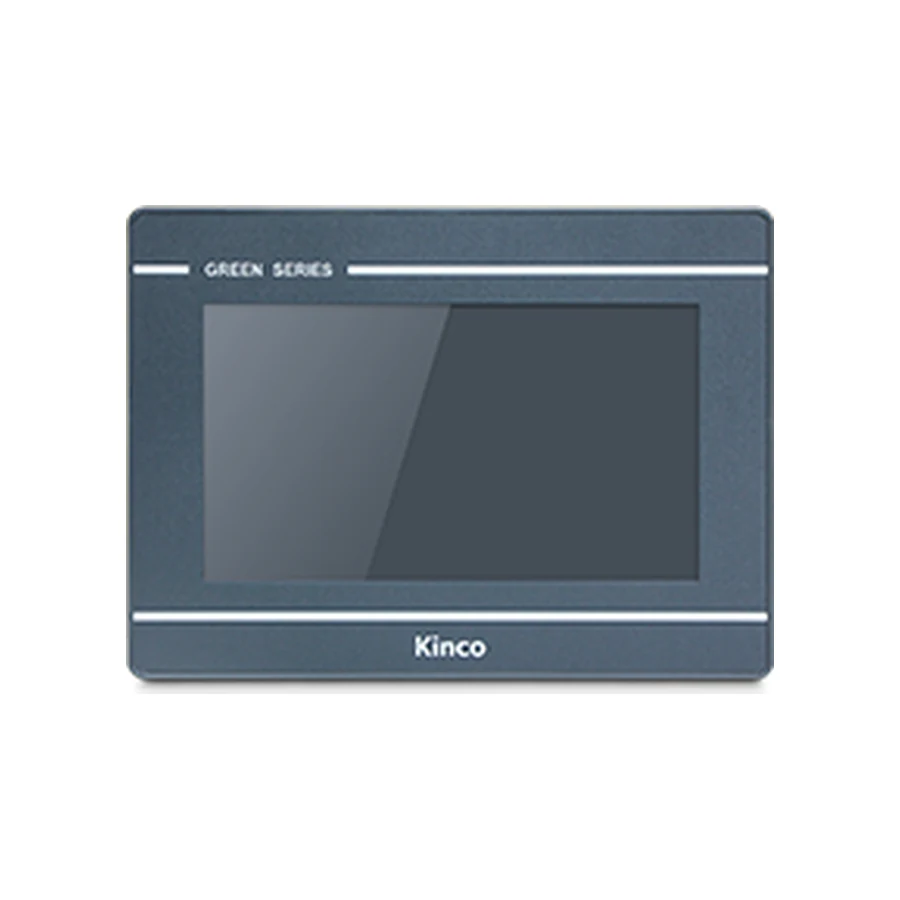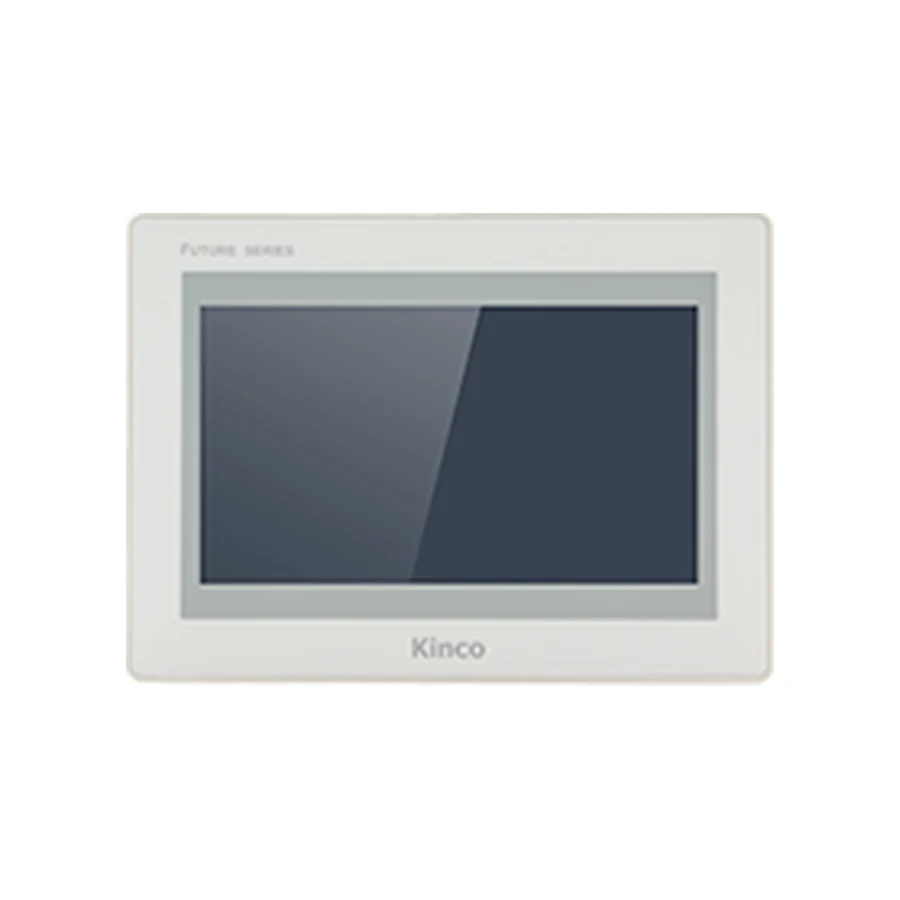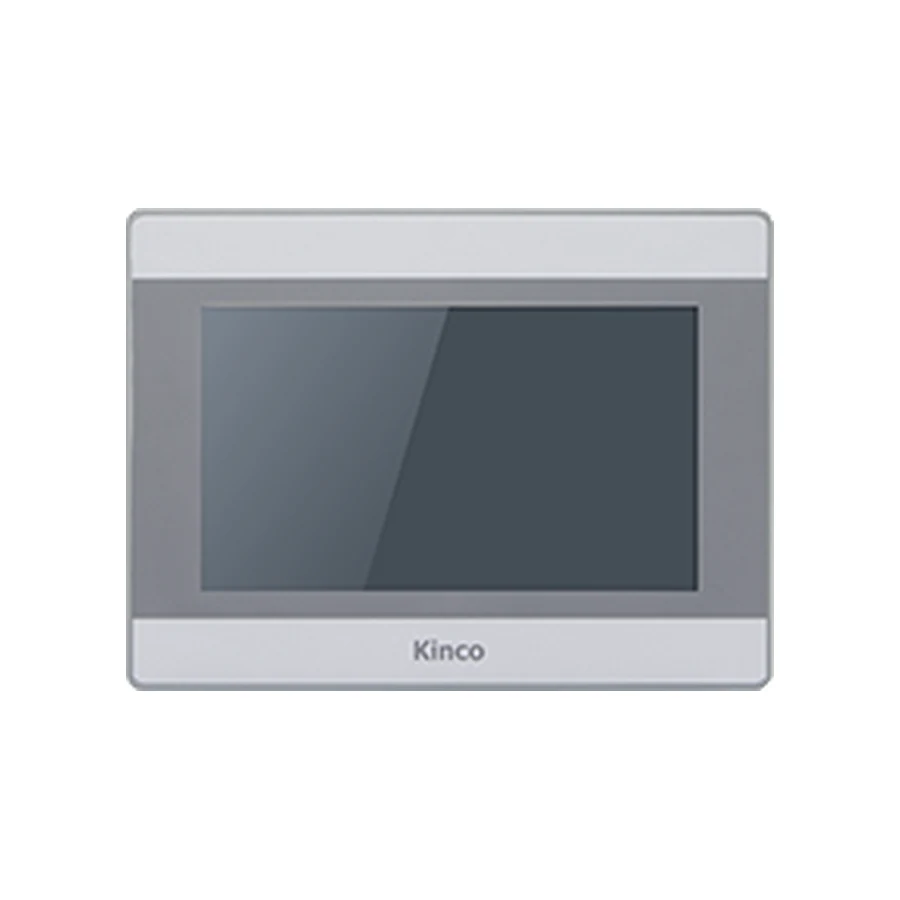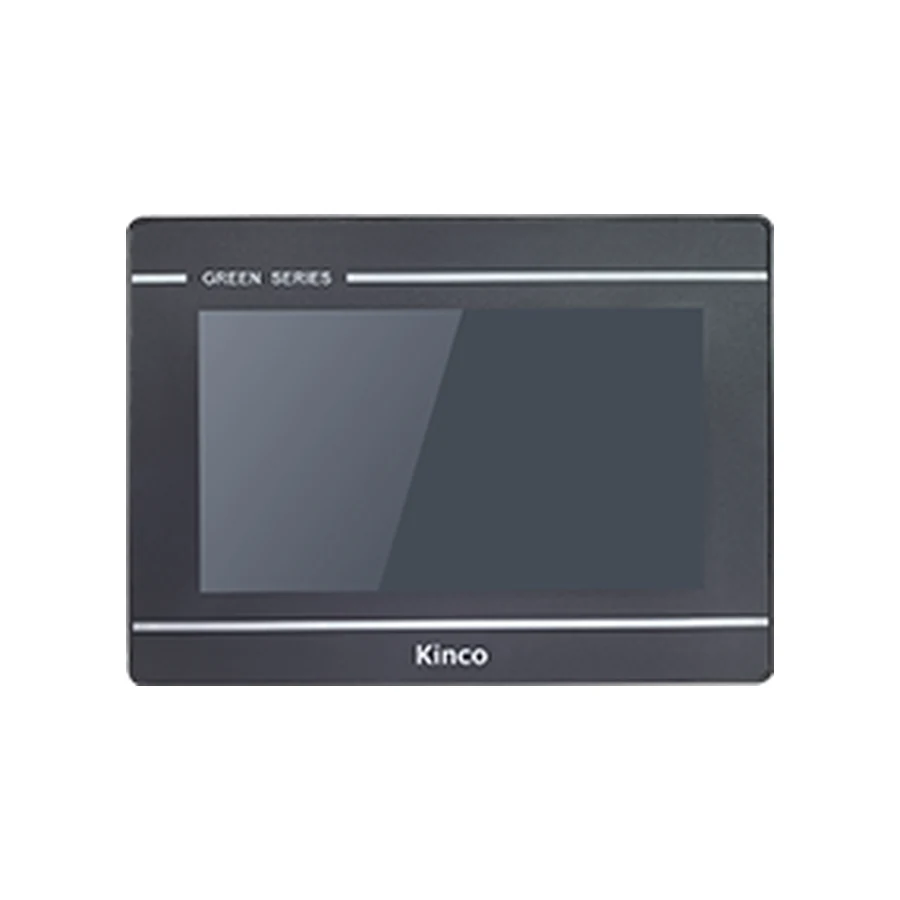
Troubleshoot a Kinco HMI USB download by separating the physical connection, computer detection and project transfer stages. Confirm the model’s documented computer-facing port and cable before changing software settings. Preserve the working application and editable source, then record the target and package release. A completed transfer still needs runtime and PLC communication checks, so keep its result separate from the machine’s final acceptance.
Confirm the USB Port Role and Supported Cable
Read the full panel label and compare the connector area with the applicable drawing. Screen size and family resemblance do not identify a download cable. Record the actual connector, the cable being used and the transfer method described for that model. Inspect connector damage or a loose connection before interpreting a software error.
USB Host Versus the Computer-Facing Device Port
A USB host port can serve a supported storage device or peripheral. The documented device connection serves the computer where the panel and software support that transfer route. These roles cannot be exchanged merely by finding an adapter that fits. Likewise, a search for USB Type-C programming does not prove that a specific panel has a Type-C transfer connection; confirm the hardware drawing.
Use the GL070 model and transfer-interface information or GL2070HE code-specific document requirements when those groups match the inquiry. Request the manual and drawing for the exact code and hardware revision. A product group’s port description should not be applied to a different suffix without checking its specification.
During diagnosis, use a suitable direct computer connection and stable panel power. Record any hub, extension or adapter if one cannot be removed. The aim is a reproducible physical arrangement whose result can be compared with the manufacturer’s instructions.
Preserve the Project and Verify the Target
A download can replace the application already on the HMI. Identify the intended project and preserve the original editable source, its dependencies and the working machine settings before transferring anything. Retain a separate untouched copy rather than overwriting the only project file during a package upgrade or target change.
A USB connection does not guarantee that editable source can be uploaded from the panel. An application backup, a compiled runtime and the original editable project serve different purposes. Recovery depends on what was retained and what the model and software support. Follow the backup and recovery guide if the source is missing or the available file’s purpose is uncertain.
Confirm the full target code, resolution, software family and package release in a working copy. Review PLC driver selection and external resources before compiling. The DTools software selection guide explains why DTools and DTools Pro must be matched to the target. Opening a project successfully does not prove that the chosen release can transfer it to the connected hardware.
Check Computer Detection Before Transfer Settings
Connect the documented port and observe the operating system before changing application settings. Record whether a device appears, how it is identified and whether an error is reported. Include the operating-system version and software package release. This gives support a concrete detection result rather than the broad statement that USB does not work.
Not Detected Versus Detected but Not Connected
When no device is detected, revisit panel power, connector role, cable suitability and the physical path. When an unknown device appears, retain its displayed status and follow the matching package’s USB driver instructions. Do not install a driver solely because its name resembles the panel family.
If the operating system identifies the panel but the engineering package cannot connect, the investigation has moved to another stage. Compare the supported transfer route, target selection and any model-specific transfer state. Menu names and procedures can differ between releases; use the instructions for the actual package instead of assuming a universal download button or setup sequence.
Separate Driver, Connection and Compile Failures
Use the earliest failing stage to choose the next investigation. A project compile failure is not evidence of a broken cable. A computer detection failure is not corrected by changing PLC addresses. Keep the full message, including any error code, instead of paraphrasing every failure as a timeout.
| Observed stage | First investigation | Useful record |
|---|---|---|
| No device detected | Power, port role and cable path | Operating-system observation and connector photo |
| Unknown device or driver error | Applicable package driver instructions | Device status, error and package release |
| Device identified, package cannot connect | Transfer route, target and documented panel state | Connection message and selected target |
| Compile or transfer failure | Project validation or the stage where transfer stops | Full log, repeatability and connection arrangement |
| Runtime abnormal after completion | Target, resources and application behaviour | Transfer result plus separate runtime symptoms |
Compile the copied project before another machine transfer where possible. Resolve reported target or resource problems using the package documentation. If transfer stops partway, record when it stops and whether panel power or computer detection changes. Alter one variable for each trial so a successful result has an identifiable cause.
Record Transfer Results Without Losing the Original
Before the planned transfer, agree which file is approved, who owns the machine test and how the working configuration will be restored if acceptance fails. Keep the archived original separate from revised files. File names should distinguish source, compiled application and any model-supported backup so a later technician cannot confuse their roles.
Save the completion or failure message together with the project identity and target. A failed transfer may leave the machine unavailable; consult the documented recovery route for the exact model before trying unrelated firmware or another panel’s application. Repeated overwriting without a diagnosis makes it harder to establish what state the panel is in.
Where a transfer succeeds, record that limited result accurately: the package completed the intended transfer to the identified panel. Runtime startup, retained settings and PLC communication remain separate acceptance items. That separation also prevents a successful computer connection from being reported as proof of machine readiness.
Verify Runtime and PLC Data After Download
Confirm that the intended application starts and that its displayed project identity matches the approved file. Review screen navigation, touch response, text, numeric fields, language resources, alarms and recipes used by the machine. Check the panel after a controlled restart under the owner’s procedure, noting whether the expected application and settings remain available.
Successful Transfer Versus a Working Machine
Use one approved read-only PLC value to establish live data after runtime starts. Compare it with the PLC engineering tool and distinguish an actual update from a retained number. If the application displays but values are absent, continue with the PLC No Response diagnosis, preserving the successful USB result as separate evidence.
A write test requires an approved commissioning variable, controlled machine conditions and the owner’s authorization. Verify access and interlocks while keeping machine control and safety logic in the PLC. Do not use ordinary operator commands as an improvised communication test. Remove temporary test controls and record the agreed final acceptance result.
Prepare a Reproducible USB Support Record
Send the full HMI code, package release, operating-system version, connector photo and cable arrangement. Describe computer detection, engineering-package connection, compile result, transfer stage and runtime result separately. State whether editable source and a usable recovery file are available without attaching confidential machine content unnecessarily. For hardware replacement, add quantity, destination and the required document language.
Can USB Host be used as the computer download port?
Use the model’s documented computer-facing transfer connection. A host port intended for storage or peripherals does not establish a computer download route, even when an adapter physically connects.
What should I check when the computer does not detect the HMI?
Start with panel power, the correct port role and a suitable cable. Retain the operating-system result, then follow the matching software package’s driver instructions. Project edits cannot resolve an unidentified physical connection.
Does a successful USB download prove PLC communication?
No. It confirms a transfer stage. Verify runtime, the selected PLC driver and a known read-only value separately. Use the Kinco download center to request the applicable package and documentation when the transfer procedure remains unclear.