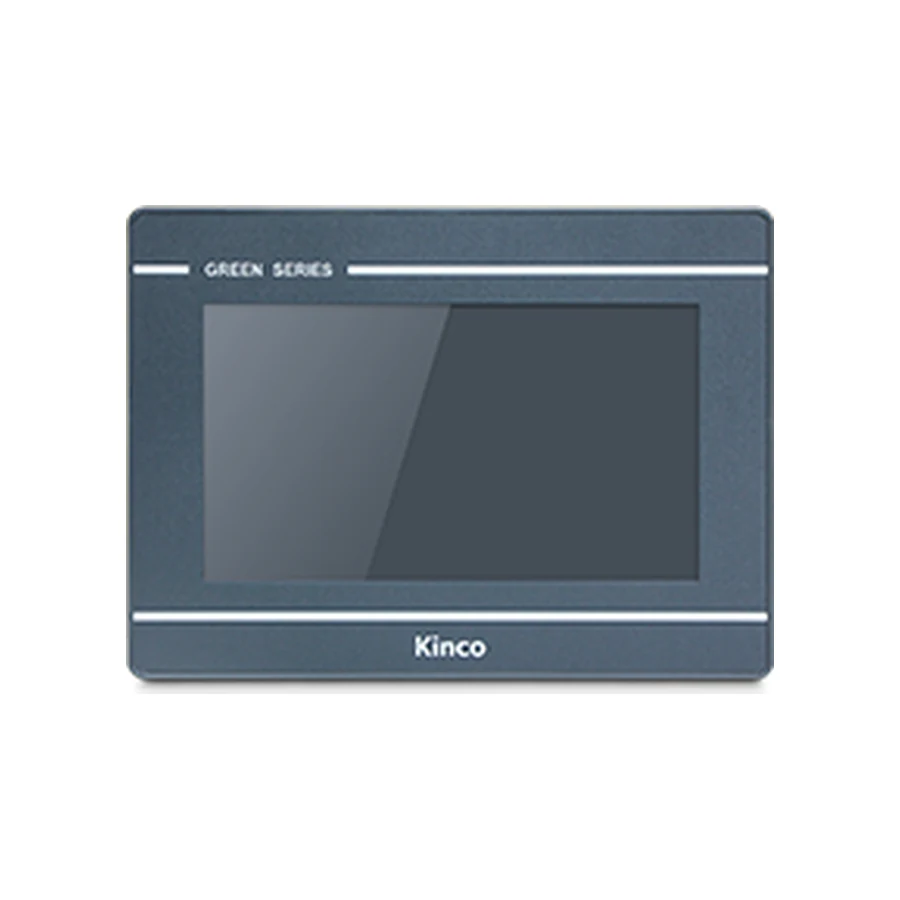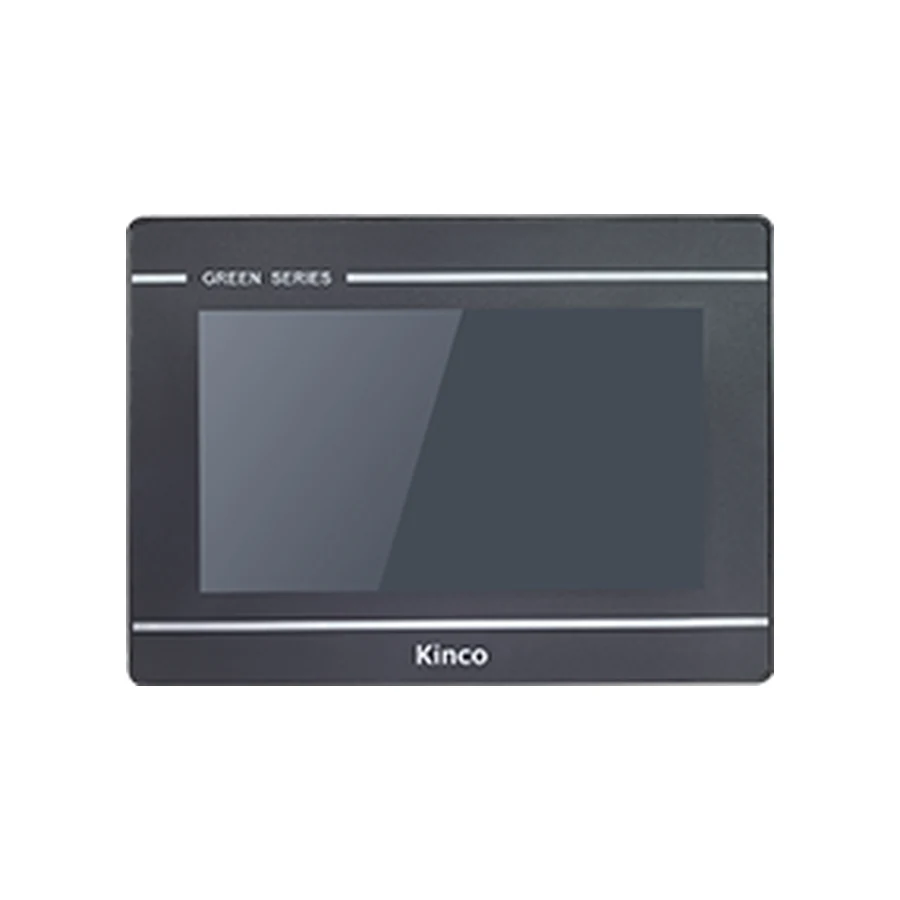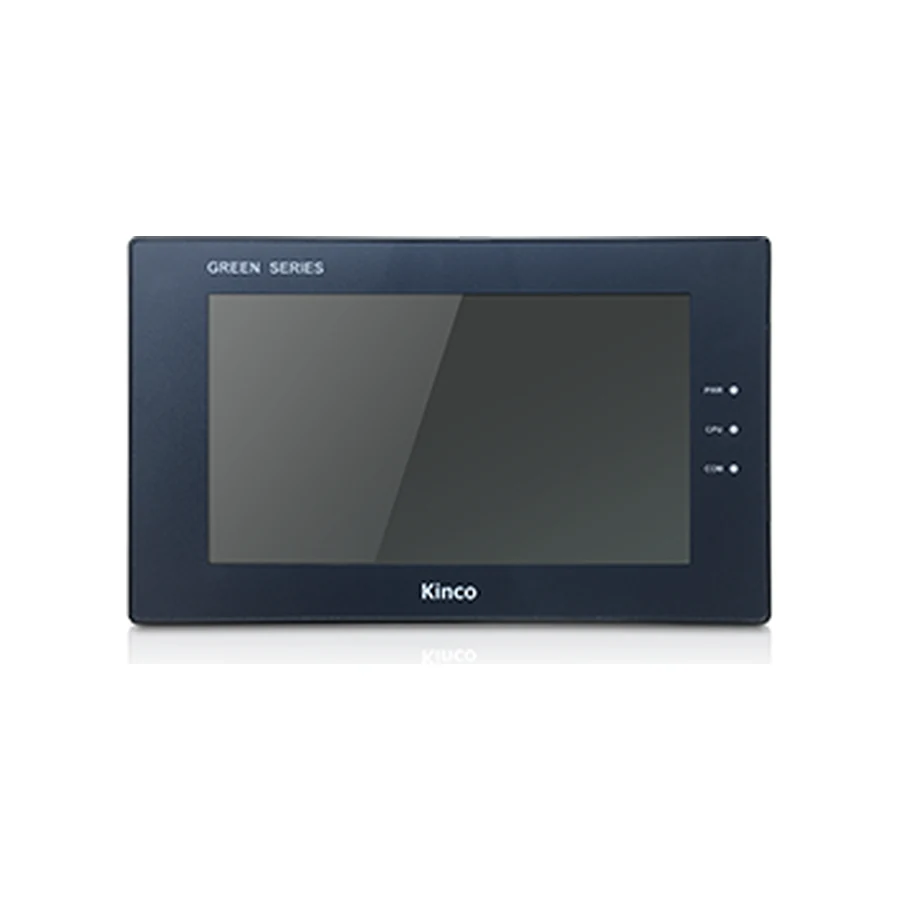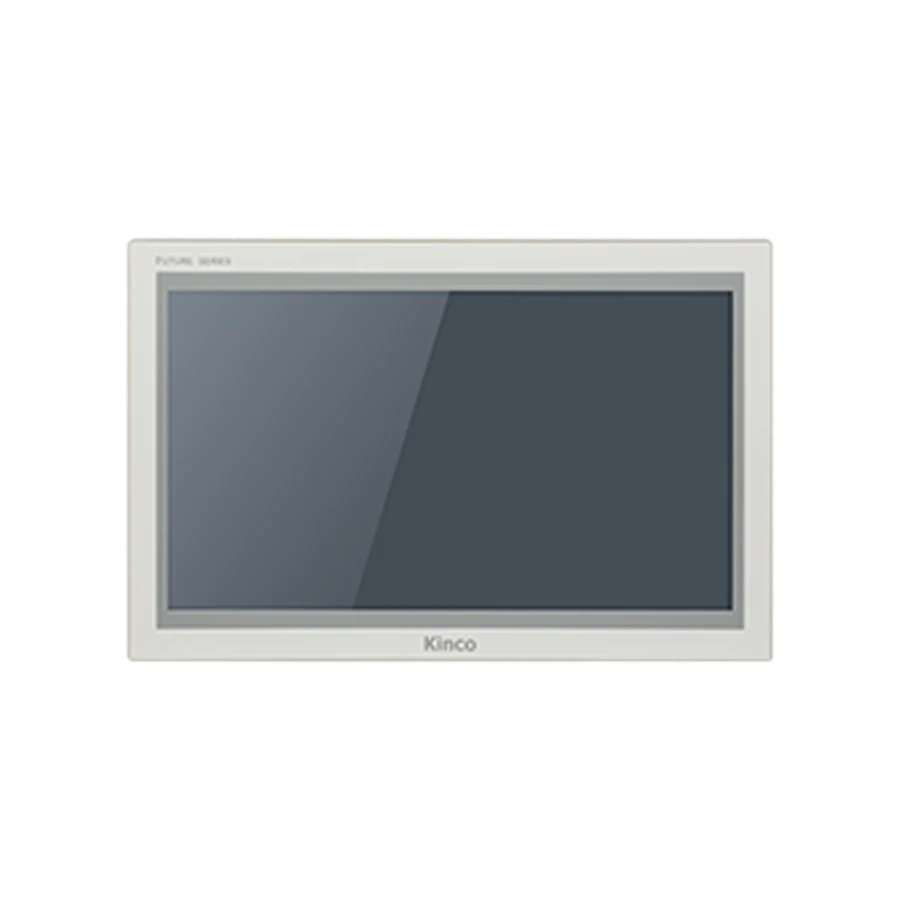
Choose a Kinco HMI screen size by testing the information operators need to read and touch. Diagonal size, pixel resolution, brightness and cabinet opening describe different requirements. Compare a representative operating page at the intended viewing position before changing panel size. A larger display may improve physical readability while still requiring layout, mounting and connection checks for the complete replacement code.
Define Operator Viewing and Touch Tasks
Start with a task that matters during production: finding an alarm cause, reading a process value or entering an approved setpoint. Identify which information must remain visible while that task is completed. A page containing every available value can be less useful than a clear page containing the values needed for one decision.
Include routine and abnormal conditions. An overview may appear comfortable until a long alarm message, translated label or maximum-length number appears. Compare those demanding states, rather than judging a screen from a clean demonstration page. Record whether operators stand directly in front of the panel, approach from the side or work at more than one position.
The panel selection guide covers the wider controller, software and interface decision. Here the acceptance question is specific: can the intended operator read the required information and select the intended control under the actual installation conditions? Give that question a recorded answer before choosing a diagonal.
Separate Diagonal, Pixels and Cabinet Opening
Diagonal measures physical display size. Resolution specifies the pixel grid used for the page. The cabinet opening describes mounting fit, while rear clearance describes the space needed behind the panel. These four requirements interact, but none can stand in for the others.
Same Resolution on Different Diagonals
A 7-inch and a 10.1-inch panel can both use 1024 × 600 pixels. An object occupying the same pixel area can therefore be physically larger on the larger screen. That can help readability, but it does not add more pixel space or establish that the project targets are interchangeable.
A compact 4.3-inch interface needs particularly careful review of small labels and touch spacing. At 10.4 inches or 12.1 inches, a different aspect ratio may matter more than diagonal alone. Compare the exact target grid with the existing page before deciding whether to enlarge, rearrange or redesign it. Avoid using an informal description such as a 10-inch HMI as the final purchasing identifier.
If resolution increases at the same diagonal, resist the temptation to fill every extra pixel with smaller text. Extra space can instead create clearer grouping and better separation. The useful outcome is an easier operator task, not a higher count of visible objects.
Bezel Size Versus Cabinet Cut-out
The bezel overlaps the opening; its outside dimensions are not the machining dimensions. Obtain the exact installation drawing and record opening width, opening height, mounting thickness and clamp access separately. Behind the door, include the panel body, plugged-in connectors and cable bends.
An opening that looks large enough may still prevent correct clamping or sealing. Likewise, a shallow body can conflict with an existing cable duct once connectors are installed. Use the cabinet and power installation checks to examine those conditions. Photographs and this comparison are useful planning aids, but they are not cutting templates.
Compare 7-inch Display Layouts
GL070 and GL2070HE illustrate 800 × 480 versus 1024 × 600 resolution at the same diagonal. For the complete code matrix, interface differences and installation comparisons, use the 7-inch HMI selection article.
For the display decision, use one representative alarm page across the proposed layouts. Include the longest expected message, timestamp, process context, acknowledgment target and normal navigation controls. Keep the underlying operator task constant so the comparison tests usability rather than different page content.
Record whether the whole message can be read, whether wrapping hides essential context and whether the acknowledgment control remains distinguishable from adjacent controls. Note the smallest readable text at the actual position and the glove used for input. A software preview can expose clipping, but a correctly scaled print is needed to examine physical size and suitable hardware is needed to test touch response.
The GL2070HE product record provides code-specific display and installation details. Keep those details attached to the candidate rather than assuming that every 7-inch panel shares the same mounting or touch specification. The acceptance record should identify the tested target and page revision.
Compare 15-inch and 15.6-inch Formats
First compare shape. A 1024 × 768 page has a 4:3 pixel ratio, while a 1920 × 1080 page has a 16:9 ratio. The difference affects the position of navigation, process drawings, alarm lists and trend axes. A slightly larger diagonal can therefore require a substantially different page arrangement.
Next inspect the existing application. Decide which objects should retain their physical importance and which can use additional horizontal space. Stretching a process image can distort its meaning; distributing controls across a wider screen can increase the operator’s search effort. Review a complete task sequence rather than a single attractive overview.
Finally compare the door and its structure. The source examples F2150E2 and F2156E list openings of 352 × 279 mm and 382 × 246 mm respectively. One is taller and the other wider. Neither diagonal nor opening area alone can establish suitability. Changes to the door require the exact drawing and a review of nearby hardware.
For a shortlisted large display, the G2156E product page is the appropriate place to request its applicable specification and installation documents. Do not transfer the F2 example values to that code. A useful comparison keeps every dimension, supply requirement and software target tied to the panel actually being considered.
Check Brightness and Touch Conditions
Brightness figures help describe a display, but they cannot guarantee readability under every lighting condition. Reflections, page contrast, mounting orientation and the operator’s position affect the result. Test the smallest important text and subtle status differences, rather than judging a bright full-screen image.
Viewing-angle figures require an exact model, revision and stated direction order. Where the documentation is unclear or conflicting, leave the numerical comparison unresolved and request clarification. An unlabeled list of angles is a poor basis for approving an installation that operators must view from the side.
Gloves, Viewing Position and Touch Targets
Resistive and capacitive describe different sensing methods. Those labels alone do not establish reliable use with a particular glove, protective film or surface condition. Test the intended glove and approved panel protection with the actual controls. Record unintended adjacent selections, repeated presses and difficulty reaching corner controls.
Separate visibility from input. An operator may read a value while standing back but need to move closer to enter a number. Confirm that both positions are practical and that the door arrangement does not obstruct access. If the task fails, revise target size or grouping before assuming that changing touch technology will solve it.
Front protection also depends on correct installation. A front-panel rating does not describe exposed rear connectors or the complete cabinet. Obtain the model-specific mounting and sealing instructions whenever cleaning or enclosure conditions are material to the selection.
Record a Display Acceptance Test
Use a record that names the task, conditions, result and corrective action. This makes a later design review more useful than a general comment that the display looked acceptable.
| Record field | Evidence to retain | Acceptance decision |
|---|---|---|
| Candidate and page revision | Full code, resolution and page identity | Correct target evaluated |
| Alarm readability | Long message and process context | Essential text readable without losing context |
| Touch selection | Actual gloves and smallest controls | Intended selection repeatable without adjacent activation |
| Lighting and position | Normal and required side positions | Required information remains distinguishable |
| Installation | Exact drawing and measured door | Mounting and connector access acceptable |
Assign a reviewer and record the test date. If a page fails, describe the failed action and proposed revision. Repeat that task after revision and preserve both results. When a larger candidate is selected, return to the opening and rear-clearance checks before requesting the final quotation.
Frequently Asked Questions
Does a larger HMI always show more information?
No. Panels can share a resolution while differing in physical size. A larger screen may enlarge the same content; additional information depends on the target grid and a usable page design.
Can two 7-inch panels require different cabinet openings?
Yes. Diagonal describes the active display, not its enclosure or mounting. Compare both axes of the opening and the complete installation drawing for each code.
What should an operator test before choosing a screen size?
Test real reading and input tasks, including long alarms, smallest text, glove operation, lighting and viewing position. Record failures and retest revised pages before approving the installation.