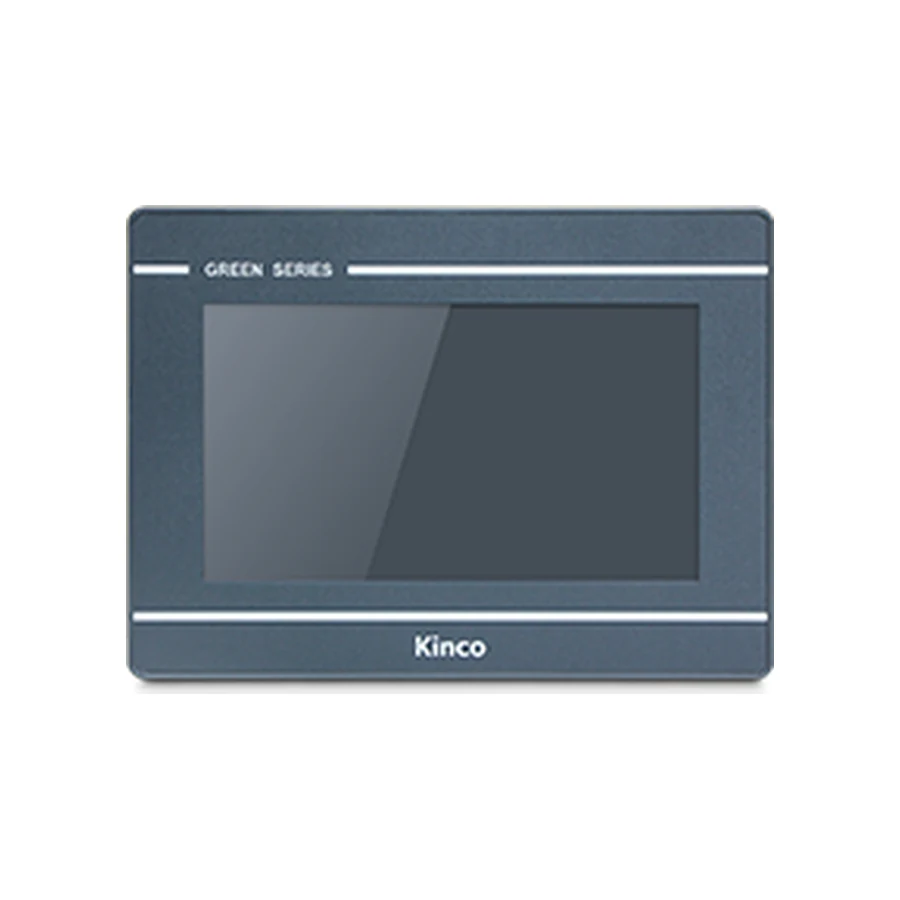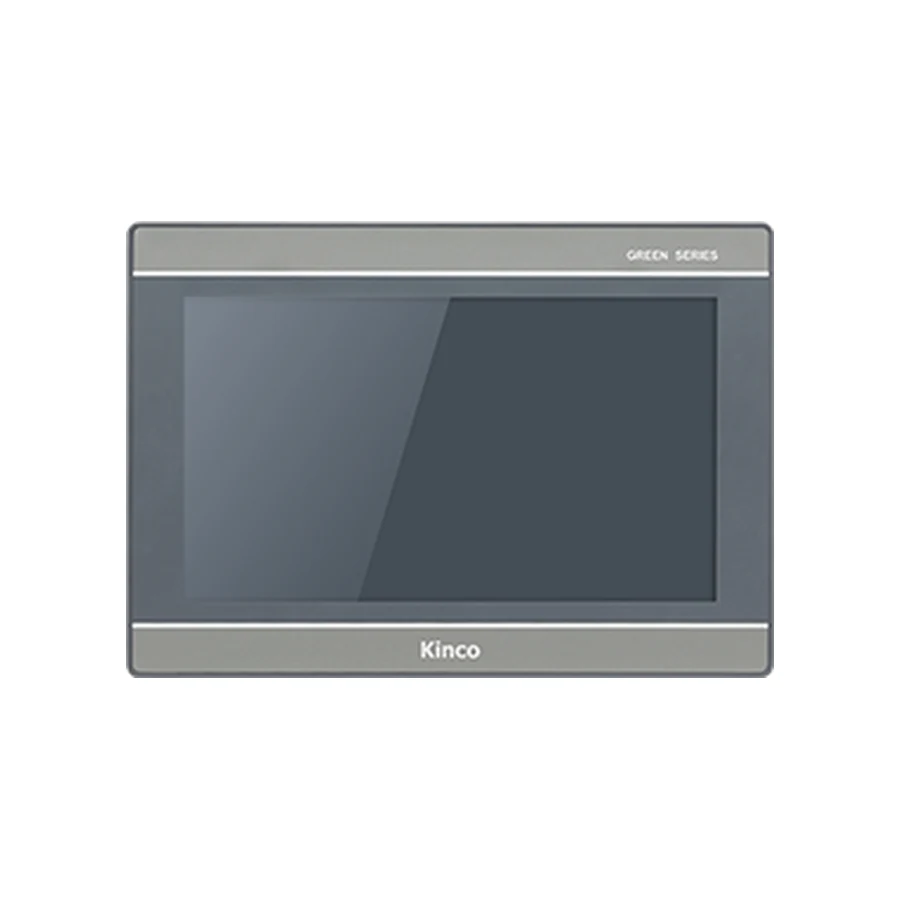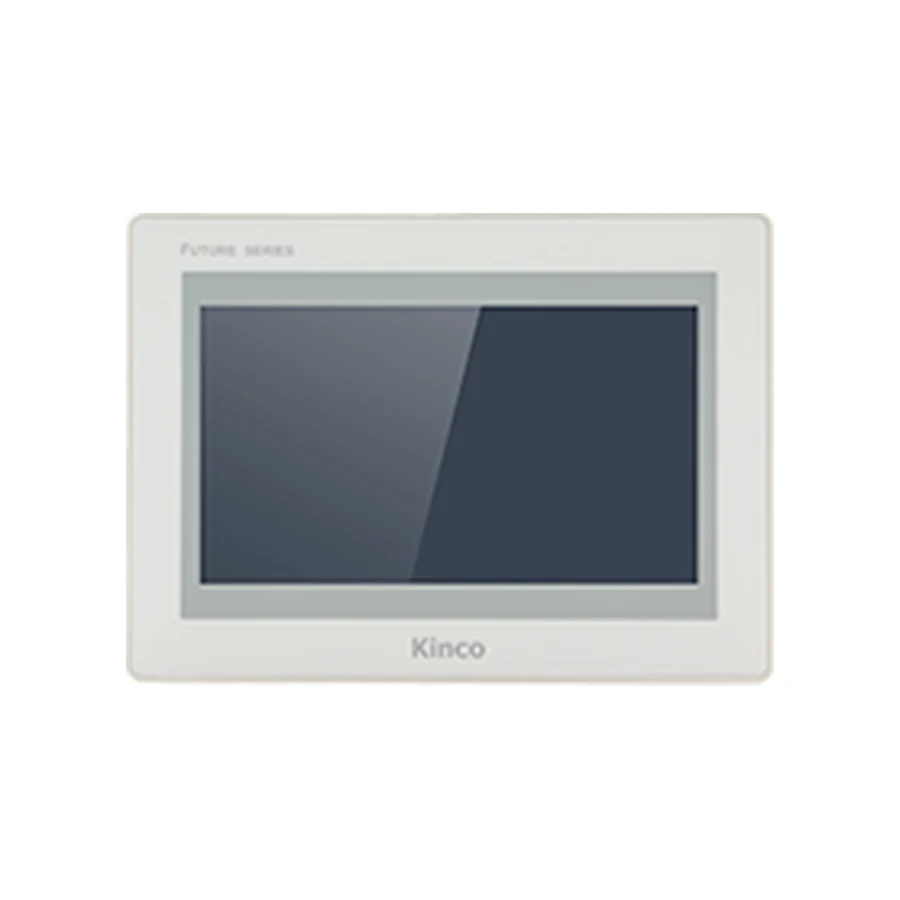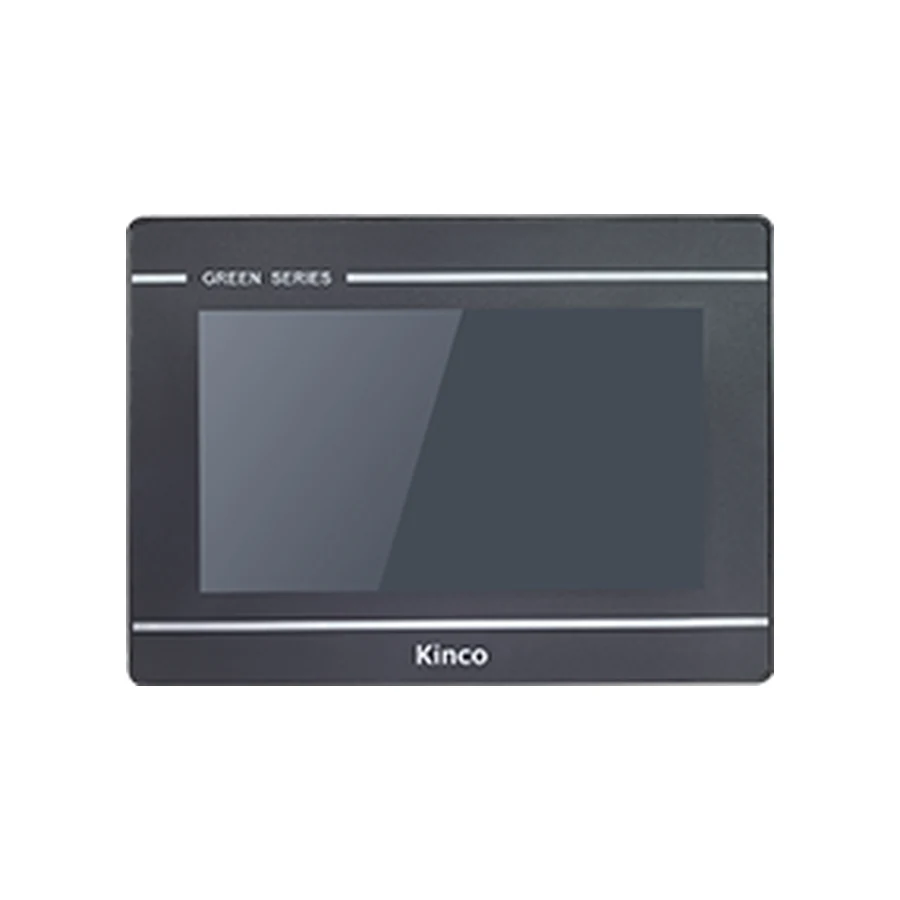
Plan a Kinco HMI connection to a Siemens PLC by recording the full CPU code, firmware and available communication route. An Ethernet S7 driver and a legacy serial connection need different support evidence. RS485 alone does not establish MPI or PPI compatibility. Match the selected driver to the exact CPU family, then check its required access and data-block format before verifying one approved read-only value.
Identify the S7 CPU and Available Communication Route
Start at the machine rather than a driver selection list. Photograph the CPU label and identify any communication module between the HMI and CPU. Record the engineering project release and the route used by the working panel. An old project may describe the original installation while the cabinet now contains a different module or CPU revision. Resolve that difference before using the project as a connection reference.
Treat S7-200, S7-200 SMART, S7-1200, S7-1500 and legacy S7-300 installations as separate targets to investigate. Their appearance in an inquiry does not establish that a particular Kinco driver supports them. If the requirement is a Siemens LOGO! connection through Modbus, identify the exact controller, available service and corresponding driver separately; do not infer support from an S7 connection example.
RS485 Hardware Versus MPI or PPI Support
RS485 describes an electrical interface. MPI and PPI require the appropriate protocol implementation and documented connection arrangement. A matching connector or electrical standard cannot supply missing driver support. Retain the existing cable identification and connection drawing, including any adapter, then compare them against the chosen driver instructions. An undocumented adapter is an unresolved engineering item.
Verify the Kinco Driver for the Exact Family
Identify the software family from the full HMI code. Open a copy of the project in its appropriate DTools or DTools Pro release and read the selected driver’s help. Save the driver name, supported target description and addressing rules with the project. A similar name in another package or release is insufficient evidence for the installation.
The PLC compatibility checklist explains how to assemble the hardware, protocol and software evidence. Use it when selecting a panel before a working project exists. Request the matching software documentation through the Kinco download center, retaining the document identity and release rather than relying on a screenshot of a driver menu alone.
For panel selection, the GL070 group specifications and document requirements and GL2070HE variant comparison provide model-specific starting points. These product links identify hardware and document requests; neither link approves a Siemens CPU connection. Confirm the required physical interface against the selected code before proceeding to software access.
Record Required IP and Target Parameters
Create a short connection worksheet containing only parameters requested by the chosen driver. Record the source of each value so a replacement technician can distinguish a machine setting from a value copied out of an unrelated example. Do not introduce universal rack, slot, port or connection defaults.
| Worksheet field | Evidence to retain |
|---|---|
| CPU and communication module | Order codes, firmware and installed route |
| Kinco target and package | Full HMI code, release and driver name |
| Network target | Approved CPU address and applicable network settings |
| Additional driver parameters | Rack, slot or identifiers only where requested |
| Serial route | Documented station, line settings and cable arrangement |
| First data item | Approved address, type, expected value and access method |
Before disconnecting an existing panel, preserve its settings and photograph its connectors. For a new installation, have the network owner confirm the intended addressing arrangement. Physical link indication establishes only one layer of the connection. A reachable CPU can still reject the selected service or the requested data access.
Check CPU Access Requirements for the Chosen Driver
Ask which PLC communication mechanism the driver actually uses. The answer determines the relevant CPU-side access requirements. Read the manual for the installed CPU and communication module alongside the Kinco driver help. Have the machine owner review any engineering change, including its effect on other connected clients and the existing project.
PUT/GET Requirements Depend on CPU and Release
For a driver route that depends on PUT/GET, inspect the applicable protection and communication requirements. The Siemens S7-1200 G2 PUT/GET documentation provides a specific reference for that CPU generation. Its configuration requirements must not be extended automatically to every S7-1200, S7-1500 or engineering release.
Document whether the requirement applies to the actual CPU, firmware and driver. If this remains uncertain, retain it as an open connection question. Do not broadly reduce PLC protection to see whether values appear. A successful engineering-tool session also does not establish that an HMI client is permitted to use the same communication mechanism.
Review Data-Block Format and Addressing
Once the driver and CPU access route are established, review the data items the HMI needs. Identify who owns the PLC data definition and how changes are controlled. An address list without its block format, data types and project revision can become misleading after a PLC program change.
Absolute or Symbolic Access and Block Format
Determine whether the selected driver expects absolute addresses, symbolic access or another documented arrangement. Compare that requirement with each relevant data block. Do not apply an instruction about one access method to a driver using another. Where the block layout affects address stability, the PLC programmer must confirm how the HMI interface is maintained.
For the first item, record data type, signedness, scaling and any required word ordering. Keep its unscaled PLC value available for comparison. A plausible displayed number can still be wrong because the HMI is interpreting different bytes or applying an unintended scale. Add strings, arrays and larger structures only after a simple approved item behaves correctly.
Prove One Read and Diagnose Partial Failure
Use a minimal page containing an approved read-only value and a communication indication. Compare the displayed result with the PLC engineering tool under agreed machine conditions. Record the observed value, expected value, time, selected address and whether a permitted change is followed correctly. Distinguish a live PLC value from a retained display or an HMI local variable.
If all values time out, revisit the family selection, CPU connection mechanism and permitted access after confirming the physical route. If one block works while another fails, compare block format, address interpretation and data definitions. The PLC No Response troubleshooting guide helps retain the distinction between a complete connection failure and a failing data request.
Change one setting at a time and retain both failed and successful results. Do not connect operator commands merely because one number reads correctly. Any later write test needs the owner’s approval, a designated commissioning variable and controlled machine conditions. The PLC must retain control and safety responsibilities, including interlocks. Remove temporary controls when testing is complete.
Save the Siemens Connection Record
Archive the CPU identification, package release, driver help reference, applicable parameters and minimal read result together. Include outstanding restrictions, such as blocks not yet tested or a communication module requiring further confirmation. For a replacement inquiry, add the old panel label, proposed code, editable project status, connector photos and cabinet measurements. Quantity and destination support a separate quotation request.
Does an RS485 port establish Siemens MPI or PPI support?
No. Confirm the driver, exact CPU family and documented cable or adapter arrangement. RS485 capability alone establishes neither protocol implementation nor a supported connection.
Do all Siemens CPUs use the same PUT/GET requirements?
No. Apply the requirements for the installed CPU, firmware and engineering release only when the selected driver uses that mechanism. The S7-1200 G2 reference is specific context, not a universal S7 configuration rule.
Why can some data blocks fail while others work?
A partial failure can reflect different block formats, incorrect addresses or data interpretation. Retain one working and one failing item, including their types and access methods, so the PLC programmer can compare them against the driver requirements.